

Dashboard Page
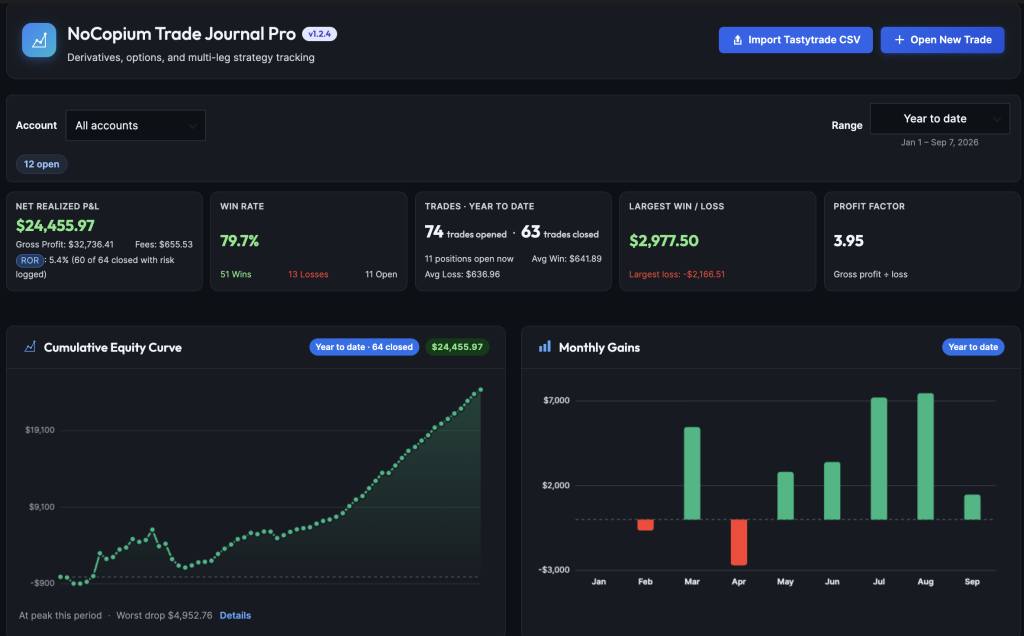
This page is the Dashboard — the home screen of NoCopium Trade Journal.
Open it from NoCopium Trade Journal → Dashboard.
What it does
It shows how the current period is going: net P&L, win rate, charts, and a day-by-day calendar. When you need to find or edit a single trade, go to the Trade Journal.
Why it matters
You get a quick read on results and upcoming decisions (such as what expires soon) without digging through every fill first.
First time here
If you have no trades yet, the Dashboard shows a short welcome instead of charts.
- Create an account — a name for that book of trades (for example Tastytrade IRA).
- Add data — click Log first trade, or Load Sample Trades to explore with demo data.
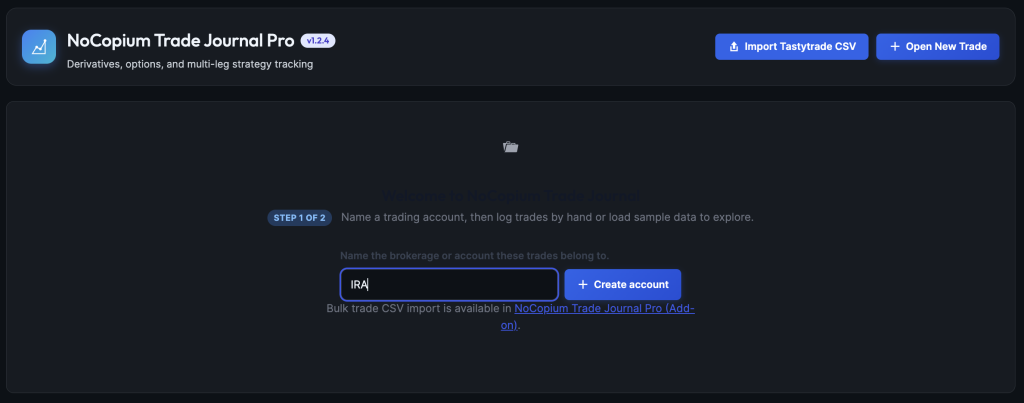
IMAGE: dashboard-welcome — Welcome card with create account and load sample trades
You need at least one account before you can log or import. Samples use Example Account; remove them later in Settings when you are done exploring.
After you have trades, a small getting started list may appear at the bottom (account, first trade, buying power, mindset, plan tags). Each link takes you to the right place. Dismiss hides it for you.
Decide this week and the glance strip
Above the big number cards you may see a short glance strip.
Decide this week appears when anything is past expiration or due within 7 or 21 days. You get cards such as Past expiration, Within 7 days, and Within 21 days. Click a card to open the journal on that list so you can hold, close, roll, or mark expired.
This is a reminder list, not a live broker risk board.
You may also see:
- How many trades are open (click to open the journal)
- A short this week line when you closed trades this week (count, win rate, net P&L)

IMAGE: dashboard-glance — Decide this week queue, open count
Buying power (BPR) and max loss are optional.
If you want to track return on risk, enter the BPR from your broker. That helps most on trades such as short strangles in an IRA or futures.
Pro: Import can fill BPR when the broker data is available. Hover BPR or ROR in the journal for short definitions.
On Free, you log trades by hand. A quiet Upgrade link takes you to Pro. On Pro, the header shows Import Tastytrade CSV, or Import latest trades after sync is connected.
Account and date filters
If you have two or more accounts, an Account menu appears at the top. Pick one or All accounts. Everything on the page follows that choice. With a single account, the menu stays hidden.

IMAGE: dashboard-account-filter — Account dropdown set to All accounts
Money numbers use closed trades only. Opens still count in the open total. Needs Review rows stay out of the stats until you fix them.
- Free: YTD, MTD, or Last month
- Pro: a longer Range menu (year to date, months, quarters, years, all time)
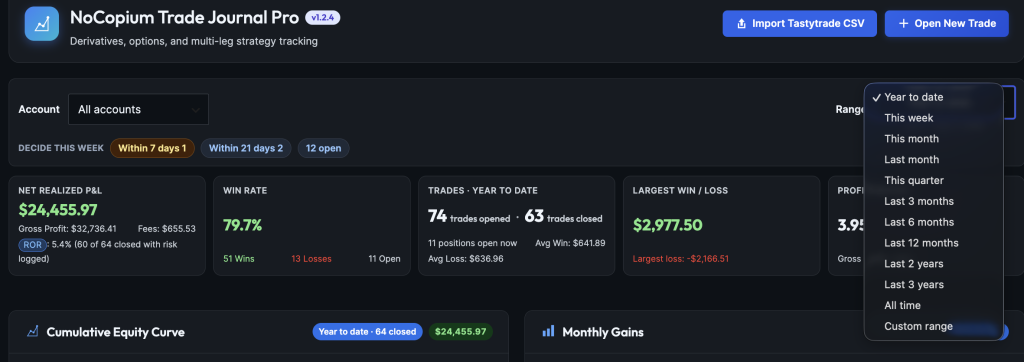
IMAGE: dashboard-range — YTD and MTD buttons, or Pro Range menu
Change the period and the cards and charts update together.
The big number cards
| Card | In plain English |
|---|---|
| Net Realized P&L | What you made or lost on closed trades in this period (after fees). |
| Win Rate | Share of closed trades that made money. Under about 10 closes, treat it as noisy. Footer links jump to Wins, Losses, or Open in the journal. |
| Trades | How many trades you opened and closed in this period (a linked open plus rolls counts as one row). Positions open now is what is still on — not “opened minus closed.” |
| Largest Win / Loss | Best and worst closed trade in the period. |
| Profit Factor(Pro) | Dollars won ÷ dollars lost. Above 1 means winners paid more than losers cost. |

IMAGE: dashboard-kpis — Scorecards including Profit Factor when Pro is active
Under the cards:
- Followed vs Broke Plan — dollars on your last 20 tagged closes (empty until you tag closes)
- Mindset at open — counts from your last 20 tagged opens
Full reports over any range are on Analytics (Pro).
Charts, calendar, and recent trades
Equity curve — starts at $0 and adds each closed trade on the day it closed. Opens do not appear here.
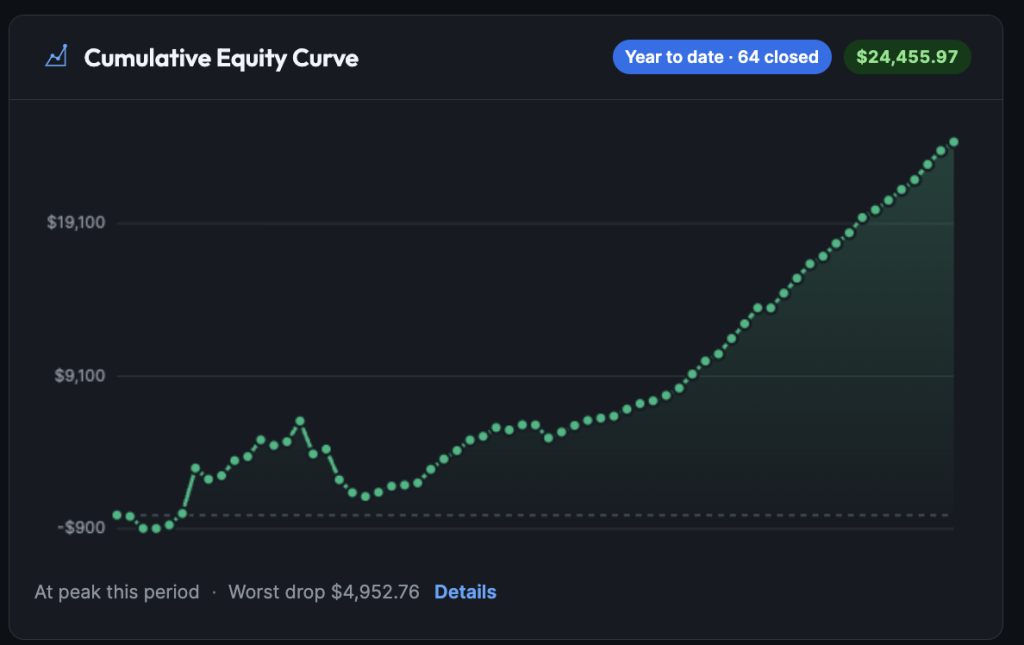
IMAGE: dashboard-equity-curve — Equity curve with period badge
Gains chart — green and red bars of realized P&L by day, month, or year (depends on the Range). Hover a bar for details.
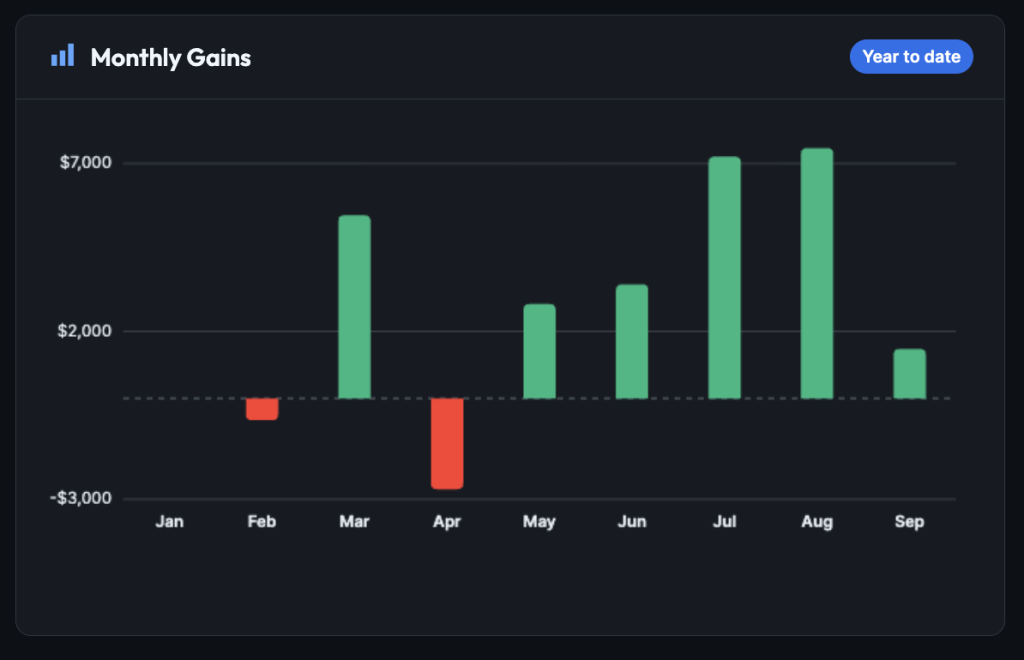
IMAGE: dashboard-gains — Period gains bars with hover tooltip
Strategy list (Pro) — top five setups by net P&L for a quick look. Use Full analytics for the detailed table.
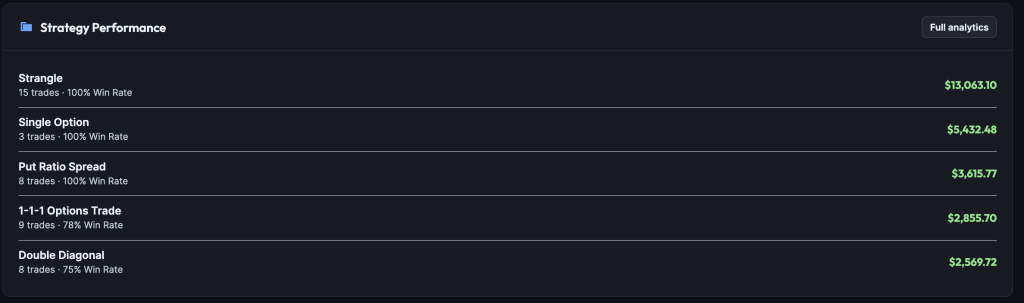
IMAGE: dashboard-strategy-performance — Top five strategies by P&L
Daily P&L calendar — one month of closed P&L by close date (green and red days). Click a day to see those closes. The calendar always shows one month; it does not follow the Pro Range menu. The account filter still applies.
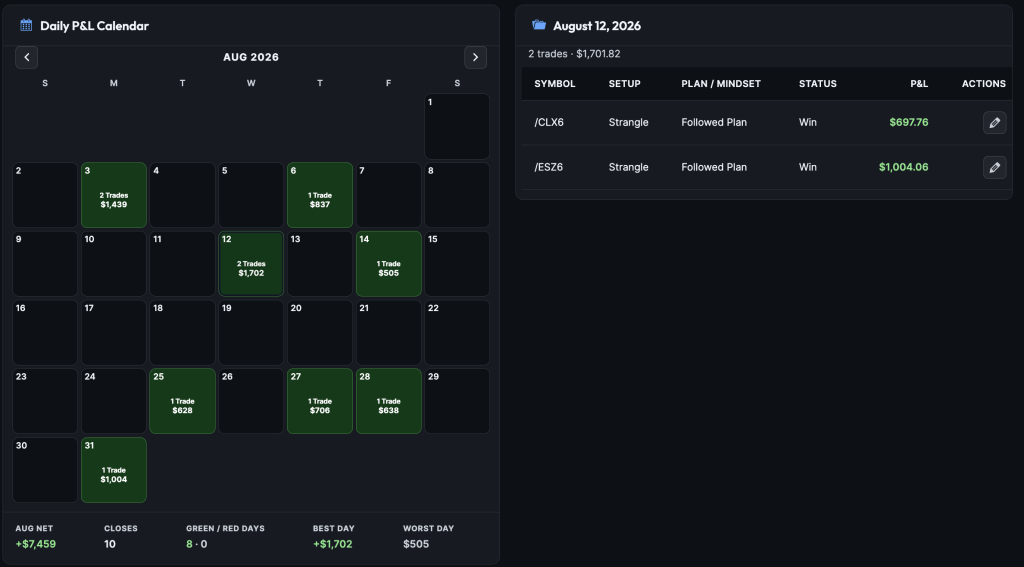
IMAGE: dashboard-pnl-calendar — Daily P&L calendar with green and red days
Recent trades — a short newest-first list under the calendar. Checkmark closes, pencil edits, trash deletes. Needs Reviewmeans fix it in the journal so it can count in stats.
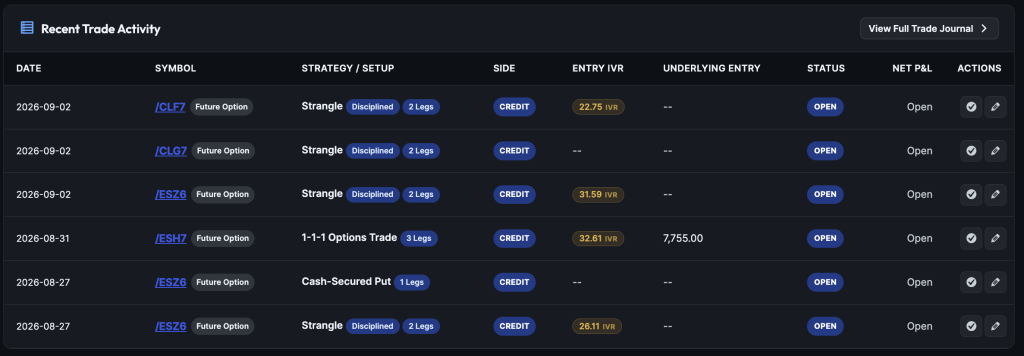
IMAGE: dashboard-recent-trades — Recent trades table
Buttons on this page
| Button | Who | What it does |
|---|---|---|
| Open New Trade | Everyone | Starts the trade form (you need an account first) |
| Upgrade | Free | Goes to nocopium.com for Pro |
| Import Tastytrade CSV | Pro | Opens Import |
| Import latest trades | Pro (after sync) | Pulls new fills since last sync |
| View Full Trade Journal | Everyone | Opens the full list |
| Full analytics | Pro | Opens Analytics |
What this page is not
- Not a search of your whole history — use the Trade Journal
- Not detailed “keep, change, or stop” analysis — use Analytics (NoCopium Trade Journal Pro)
- Not where you rename accounts or strategies — use Settings
- Not a live broker risk board — Decide this week is a reminder list only
Free vs Pro
| NoCopium Trade Journal | NoCopium Trade Journal Pro | |
|---|---|---|
| Home screen | Yes | Same page, more options |
| Dates | YTD / MTD / Last month | Full Range menu |
| Cards | Four | Adds Profit Factor |
| Decide this week | Yes | Yes |
| Charts + calendar | Yes | Same; more Range options; drawdown line under equity |
| Top strategies | — | Top five + link to Analytics |
| Import | Upgrade link | Import CSV / latest trades |