

Trade Journal Page
This page is the Trade Journal — the full working list of your trades in NoCopium Trade Journal.
Open it from NoCopium Trade Journal → Trade Journal.
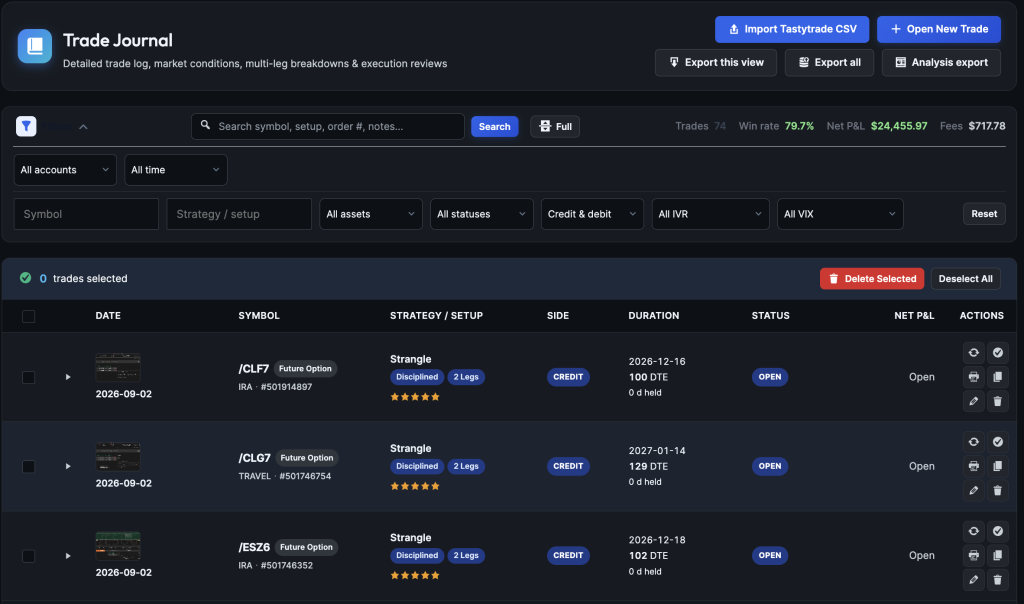
IMAGE: journal-overview — Header, toolbar, summary pills, and the trades table
What it does
Search, filter, edit, close, print, duplicate, or export your trades. The Dashboard is a snapshot of the period; this page is where you manage individual trades.
Why it matters
This is the list you trust when you need the Order #, the legs, or to close and tag a trade. Linked rolls also live here as one row when you connect them — see Rolling & linked trades.
First time here
You need at least one account before Open New Trade will save. Create one on the Dashboard, in Settings, or on Import in Pro.
If the list looks empty but you already have trades, your filters are hiding them. Click Reset under Filters.
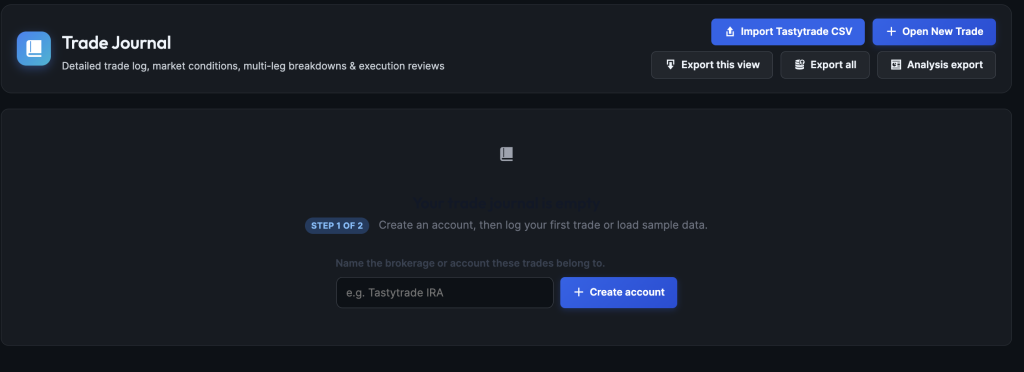
IMAGE: journal-empty — Empty state when filters match nothing
Search and header actions
Search sits next to Filters. It looks in symbol, strategy name, broker order #, and notes. Press Enter or Search.
Tip: press / to jump to search.
| Button | Who | What it does |
|---|---|---|
| Upgrade | Free | Opens nocopium.com for Pro |
| Import… | Pro | Opens Import (or Sync after you connect) |
| Open New Trade | Everyone | Starts the form (tip: press n) |
| Export this view | Everyone | Spreadsheet of whatever your filters match |
| Export all | Everyone | Spreadsheet of the whole journal |

IMAGE: journal-header — Header actions including export and Open New Trade
Export is for spreadsheets. To move the journal to another WordPress site, use Settings → Backup / restore.
Four summary pills follow your filters: Trades, Win rate, Net P&L, and Fees.
Filters
Click Filters to open the panel. An active filter shows a count on the button.
The journal defaults to All time and All accounts (the Dashboard usually starts on this year).
| Filter | What it does |
|---|---|
| Account | One book, or all |
| Date range | Week, month, quarter, year, custom, and more |
| Search | Same as the toolbar |
| Asset class | Future option, equity option, futures, stocks, crypto |
| Strategy | Names from Settings (and import) |
| Status | Open, closed, wins, losses, breakeven, Needs review |
| Cash flow | Credit or debit |
| IVR / VIX | Only trades where you typed those |
Reset clears everything and shows the full list again.
Coming from the Dashboard with an account selected keeps that account. Clicking a calendar day filters the journal to that day. Decide this week cards (Past expiration, Within 7 days, Within 21 days) open their matching lists here.
Shortcuts outside the Filters panel
You reach these from the Dashboard Decide this week queue or the getting-started checklist:
| Shortcut | What you get |
|---|---|
| Opens missing BPR | Opens with no buying power or max loss logged |
| Closed missing ROR capital | Closes that still have no capital for return on risk |
| Expiring within 7 or 21 days | Opens nearing expiration |
| Past expiration | Still open, but the option date already passed — often the broker never sent a close. Use Mark expired only after you confirm it expired worthless. |
A Clear chip appears while one of these is on.
Buying power and max loss are optional. Pro import often fills BPR. Use the pencil (or opens missing BPR) for leftovers — especially IRA short strangles and futures.
Reading the table
Newest trades appear first. The list shows 50 rows per page.

IMAGE: journal-table — Table rows with status pills and P&L
| Column | What you see |
|---|---|
| Checkbox | Select rows on this page for bulk delete |
| Arrow | Expand legs, notes, mindset, plan |
| Date | Open date; close date when closed |
| Symbol | Ticker, account, order # when present |
| Strategy | Structure name (Strategy Not Confirmed means tag it) |
| Side | Credit or debit |
| Market context | IVR, VIX, underlying if you logged them |
| Entry / Exit | Prices (-- exit while open) |
| Duration | Expiration and days held. Opens show DTE = days from today to expiration, plus Within 7/21 days when close. Closed trades show DTE at entry (open → expiration). |
| Status | Open, Win, Loss, Breakeven, or Needs Review. Past expiry when the option date already passed. |
| Net P&L | Closed result after fees (same idea as Dashboard Net Realized P&L, per trade). Open shows Open. |
| Actions | Close, duplicate, print, edit, delete — and the roll icon on opens |
Needs Review means something is incomplete (common after an import close without its open). Fix it so the trade can count in stats.
Compact hides some columns on small screens.
Keyboard shortcuts: / search · n new trade · Esc close overlays.
Legs, rolls, and details
Click the arrow to see each option leg, plus notes and tags.
When you link rolls, several Order #s collapse into one row. Full how-to: Rolling & linked trades.
What a linked trade shows
| Label | Meaning |
|---|---|
| Now | What you still hold (current position) |
| Idea cash so far | Cash from the open plus each roll so far. Not a live quote. That is the on-screen label while anything is still open. |
| Idea P&L | Same cash total after everything is fully closed |
| Approx. break-even | Sometimes shown on simple short puts/calls — approximate, not a live broker figure |
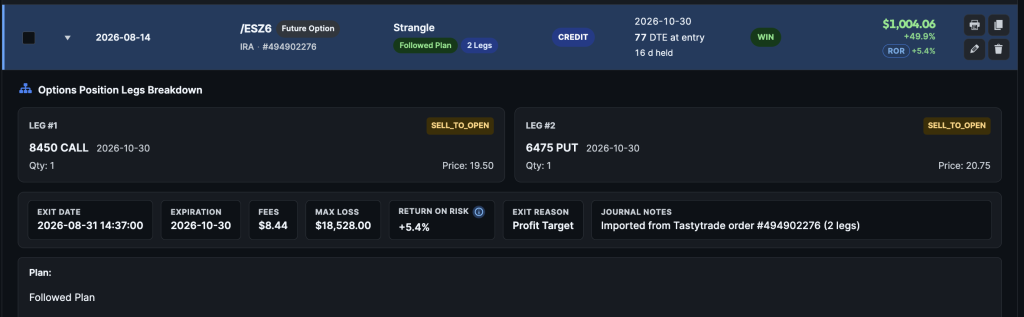
IMAGE: journal-legs — Expanded legs breakdown under a multi-leg trade
Close, edit, and delete
- Checkmark — close an open trade (exit, status, optional Followed vs Broke Plan)
- Duplicate — copy structure into a new open dated today (clears P&L and order #)
- Print — print-friendly sheet
- Pencil — edit every field
- Trash — delete after confirm (extra warning if the ticket is linked)
- Check boxes → Delete Selected (this page only; a linked-group checkbox selects every ticket in that group)
There is no undo. Export first if you are unsure.
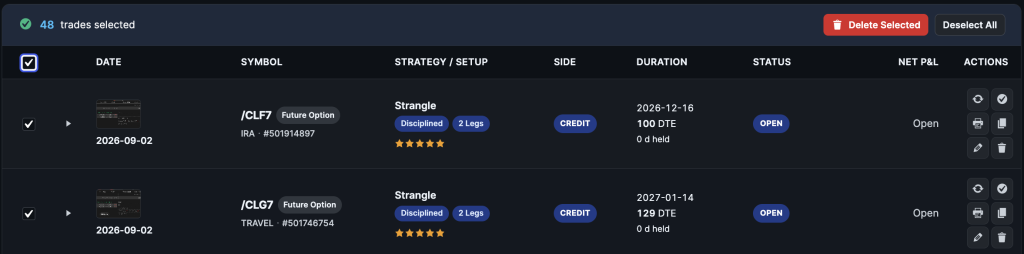
IMAGE: journal-bulk-bar — Bulk bar with delete selected
What this page is not
- Not the Dashboard snapshot
- Not Analytics reports (Pro)
- Not the Import preview — review broker files on Import (Pro), then they land here
Free vs Pro
NoCopium Trade Journal and NoCopium Trade Journal Pro share this screen. Pro only changes the header button (Import instead of Upgrade). Your trades stay in one journal either way.
| NoCopium Trade Journal | NoCopium Trade Journal Pro | |
|---|---|---|
| List, filters, search, export | Yes | Same |
| Log / edit / close / duplicate / print | Yes | Same |
| Linked rolls | Yes | Same; Pro also flags Possible rolls after import |
| Header import | Upgrade link | Import / sync |