
Import Page (Pro)
This page covers Import — how NoCopium Trade Journal Pro brings Tastytrade fills into the same journal you already use in NoCopium Trade Journal.
Open NoCopium Trade Journal → Import Trades, or use Import Tastytrade CSV / Import latest trades on the Dashboard or Trade Journal.
Keep NoCopium Trade Journal installed.
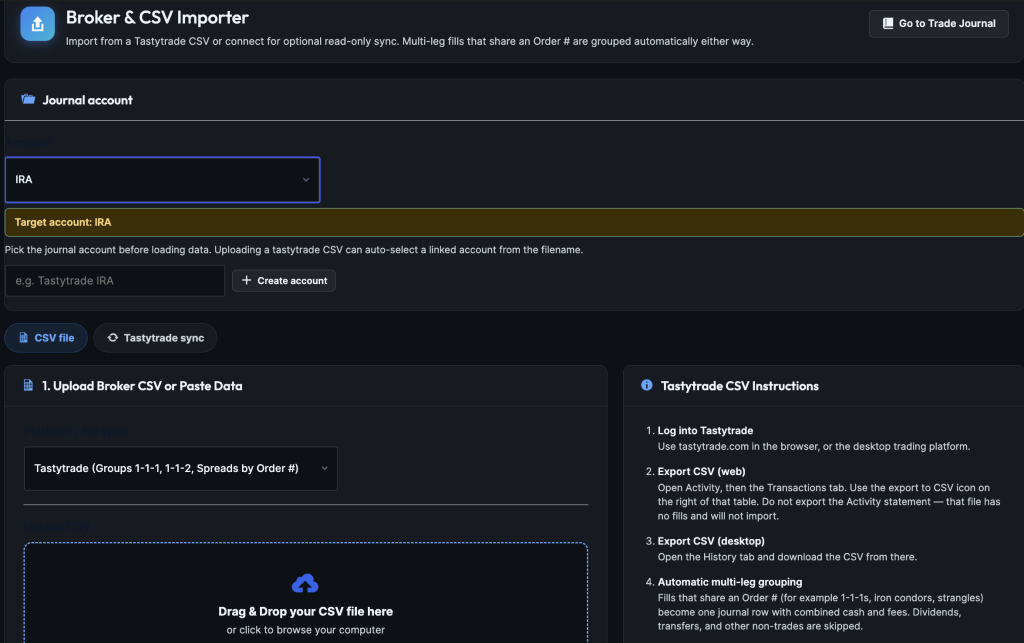
IMAGE: import-overview — Journal account card, CSV / Sync tabs
What it does
You review grouped trades first. Nothing is written until you confirm.
Fills that share one Order # become one journal row.
Why it matters
You do not have to type every fill by hand. Preview lets you catch duplicates and retag strategies before they hit the journal.
Important
There is no undo after confirm.
Pick the journal account carefully — CSV files do not name the account.
Sync setup is in Connect tastytrade.
| Tab | Use when |
|---|---|
| CSV file | You downloaded a Transactions file (no connection needed) |
| Tastytrade sync | You connected read-only access and want to pull history without a file. Sync can pull history; it cannot place, modify, or cancel trades. |
Who this is for
Import is for traders at Tastytrade who do not want to type every fill.
Fills that share one Order # (a strangle or iron condor opened together) become one journal row.
Limit: The file cannot join trades that were separate Order #s. A poor man’s covered call (LEAP now, short call later) imports as two rows. Retag in the journal if you want reports to treat them as one trade.
Generic CSV is a simple fallback — not a full Thinkorswim or Interactive Brokers importer.
Pick the journal account first
At the top, choose or create the book these fills belong to (example: Tastytrade IRA).
- Sync — after the first successful import, that journal locks to the matching tastytrade account.
- CSV — the filename often includes the brokerage ID. If already linked, the journal auto-selects when you upload. First import saves the link on confirm.
If you paste CSV text (no filename), pick the journal by hand.
CSV import
Get the file from Tastytrade
Export one account at a time. The file does not include the account name.
- Web: tastytrade.com → Activity → Transactions → CSV icon on the right of that table. Do not use the Activity statement export.
- Desktop: History tab → download CSV.
Overlapping date ranges are fine. Trades already in the journal stay unchecked as duplicates.
If a close has no matching open, import an earlier period first, or leave that row unchecked.
Step 1 — Account, then file
- Leave platform on Tastytrade unless you really have a generic spreadsheet.
- Choose (or create) the journal account.
- Drop the
.csvor click Choose File (or paste text). - Click Parse & Preview Trades.
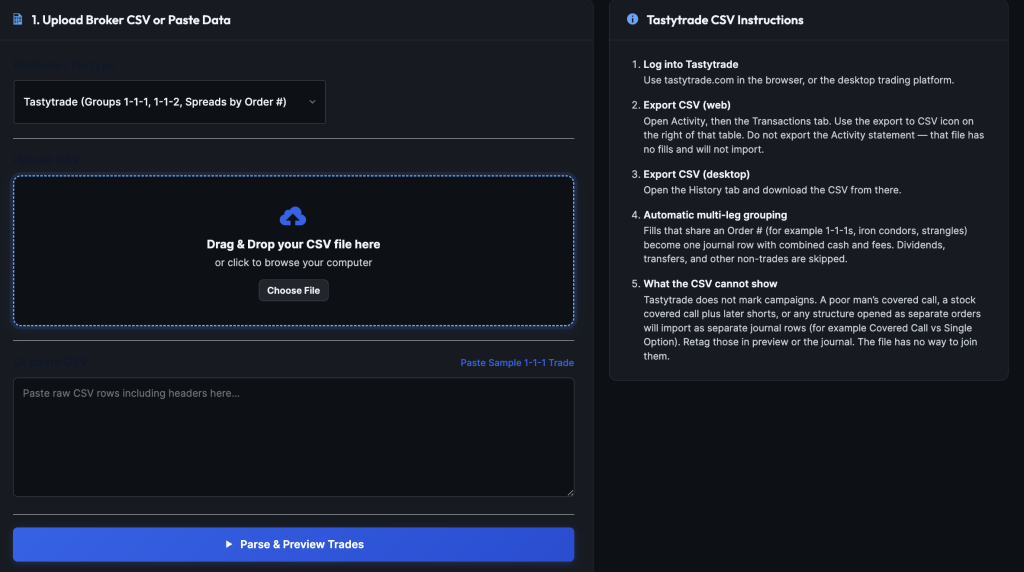
IMAGE: import-step-1 — Account selected, drop zone unlocked
Sync instead of a file
Sync is read-only. It can pull your trading history, but it cannot place, modify, or cancel trades.
Same preview and confirm as CSV.
First sync defaults to Year to date; later defaults to Since last sync.
You must create a read-only app on tastytrade — never enable trade.
Guide: Connect tastytrade.
Step 2 — Review, then import
Nothing is in the journal yet.
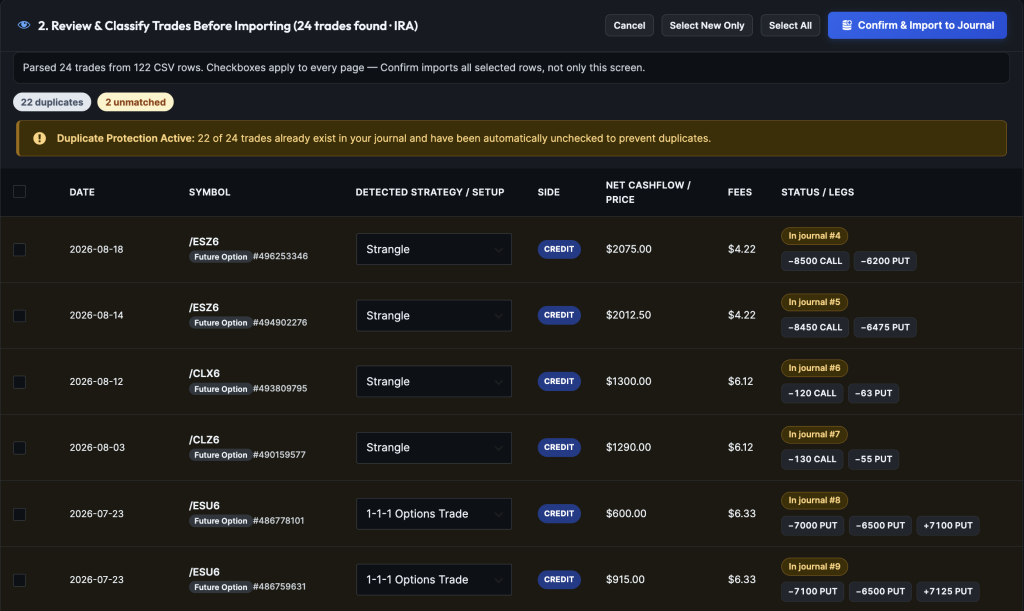
IMAGE: import-preview — Preview table with strategy dropdowns and checkboxes
| Button | What it does |
|---|---|
| Cancel | Close the preview |
| Select New Only | Check new trades; leave duplicates off |
| Select All | Check or clear every parsed trade (all pages) |
| Confirm & Import to Journal | Save the checked rows, then open the Trade Journal |
Large files show 100 trades per page; Select All still covers the whole parse.
You can change the detected strategy on each row.
Closes that match an open already in the journal are labeled so they update that trade instead of adding a second open.
Changing the account while a preview is open clears the preview — parse again.
After import
Imported trades look like manual ones. Fix strategy names, Needs Review rows, or mistakes in the Trade Journal.
If Pro flagged possible rolls, click Confirm possible rolls on the result screen — see Rolling & linked trades. Linking does not change ticket cash.
Import does not fill mindset, plan tags, IVR, or VIX. Tag those yourself when you care.
Buying power (BPR) is different from those tags.
With sync connected, Pro may fill broker BPR on opens. Otherwise you may see a Reg-T est. on some equity options.
Defined-risk spreads and cash-secured puts often work without typed BPR. IRA short strangles and futures often need you to type real broker BPR.
Filter opens missing BPR in the journal when you care.
There is no “undo this import.” Export the journal first if you want a backup.
What this page is not
- Not a campaign journal for structures that span several Order #s
- Not Thinkorswim or IBKR
- Not a full account ledger (dividends and transfers are skipped on purpose)
- Not Analytics — Import adds and updates trades; it does not analyze them
- Sync is read-only. It can pull trading history, but it cannot place, modify, or cancel trades.
Free vs Pro
| NoCopium Trade Journal | NoCopium Trade Journal Pro | |
|---|---|---|
| Import menu | — | Yes |
| Tastytrade CSV / sync | — | Yes |
| Manual Open New Trade | Yes | Same journal |