
Log a Trade by Hand
This page explains how to log a trade by hand in NoCopium Trade Journal with Open New Trade.
You will find the button on the Dashboard and the Trade Journal.
Tip: press n on the journal.

IMAGE: log-trade-button — Open New Trade in the page header
What it does
A short form walks you through the date, symbol, size, legs, optional risk information, notes, and, if needed, a close.
Why it matters
Use it when you want to type a trade yourself. If you already have many Tastytrade fills, Import (Pro) is usually faster. The pencil on the journal edits a trade that already exists.
Before you start
You need at least one account (Dashboard welcome, Settings, or Import in Pro).
Add the strategy names you actually trade in Settings (iron condor, cash-secured put, and so on).
The form starts with today’s date, your default account, and default asset class. Symbol and strategy suggest names you have used before as you type.
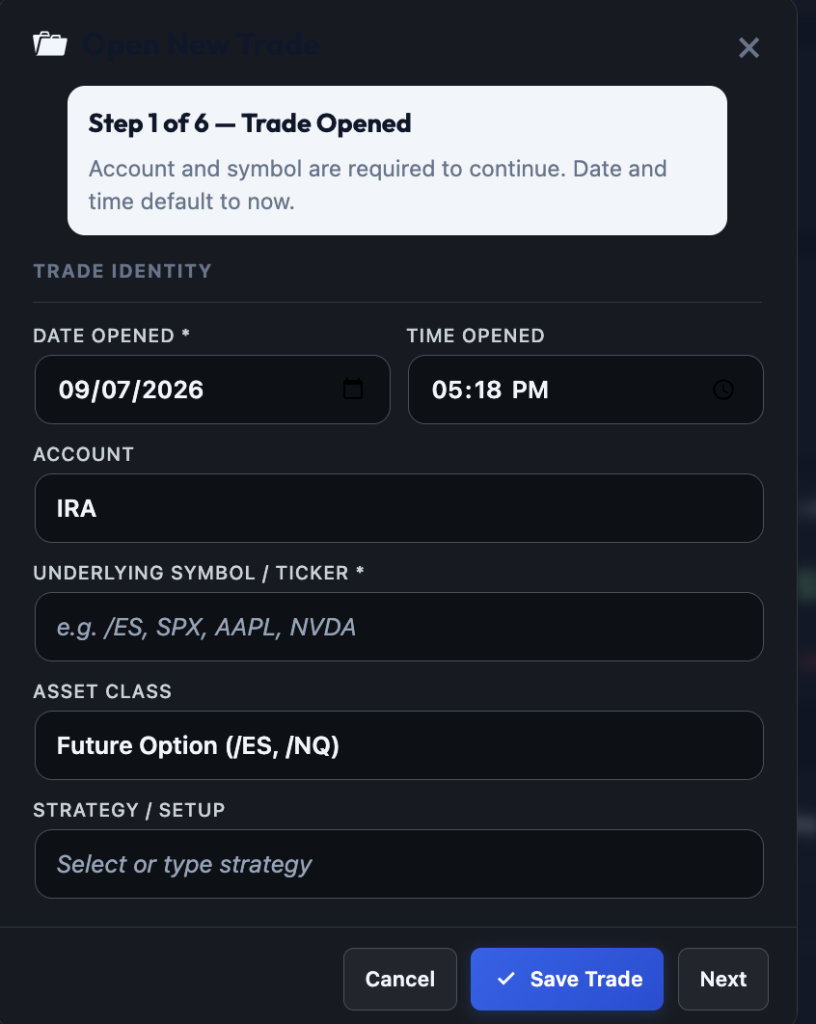
IMAGE: log-trade-modal — Open New Trade wizard step 1
How the form works
Each screen has Back, Cancel, Save Trade, and Next.
- Next moves forward. You do not have to finish every screen.
- Save Trade saves what you have. Status stays Open unless you fill the close step.
- Cancel (or Esc) throws away unsaved changes.
| Step | What you enter |
|---|---|
| 1. Trade opened | Date, time, account and symbol (required). Asset class and strategy optional. |
| 2. Size and credit | Contracts, credit/debit, entry, fees |
| 3. Option legs | Options only — skipped for stocks, futures, crypto |
| 4. Risk and market | Optional: IVR, VIX, buying power, max loss, and similar |
| 5. Notes | Optional: mindset at open, thesis, screenshot, stars |
| 6. Already closed? | Optional — for logging an old trade that already finished |
What you must fill in
- Date opened (defaults to today)
- Account
- Symbol (example:
/ES,SPX,AAPL)
Entry price can wait until step 2. You can save early and fix details later with the pencil.
Side, size, and P&L
Strategy groups the trade on reports. Many credit names set Side to Credit for you; you can override.
- Credit / Short — you collected premium. Rough P&L for a simple structure: (entry − exit) × size − fees.
- Debit / Long — you paid premium. Rough P&L for a simple structure: (exit − entry) × size − fees.
Size is how many of the whole structure you traded — not the 1-1-2 ratios on the legs screen.
Net P&L fills in when you enter an exit. You can type over it.
| Status | Meaning |
|---|---|
| Open | Trade is still open |
| Win / Loss / Breakeven | Closed — counts in stats |
| Needs Review | Incomplete — left out of stats until you fix it |
Broker Order # is optional. Imports fill it from Tastytrade.
Option legs
For listed options only. Up to four legs; leave unused rows blank.
- Qty on a leg = how many of that option are in one structure. Size on step 2 = how many structures.
- Leg prices do not change entry until you click Use net from legs as entry price.
- To roll later, use the journal roll icon or Roll this leg — do not rewrite the open ticket’s strikes. See Rolling & linked trades.
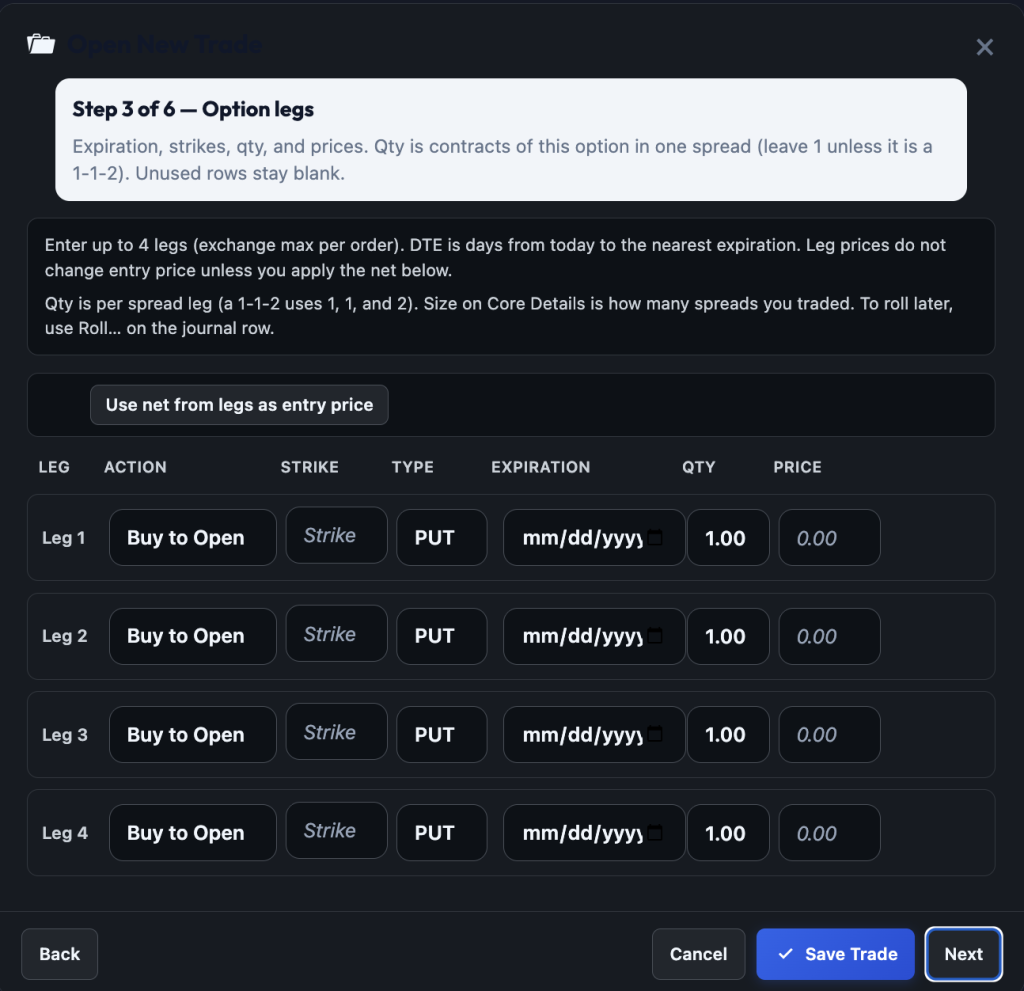
IMAGE: log-trade-legs — Four leg rows and Use net from legs
Risk, notes, and close
Risk & market fields are optional. Import does not fill IVR, VIX, or mindset.
Buying power (BPR) helps with return on risk. Hover BPR or ROR for short definitions.
Pro: Import can fill BPR when the broker data is available. IRA short strangles and futures often still need real broker BPR typed in.
Notes are about the entry. Mindset at open is optional (Disciplined, FOMO, and so on). Skip if you are not sure.
Followed Plan / Broke Plan is only on close (last step, or the journal checkmark). It asks whether the exit matched the plan. Import does not fill it.
On the journal later
- Checkmark — close only
- Pencil — edit everything
- Duplicate — copy structure into a new open for today
- Print — print-friendly sheet
What this page is not
- Not the Tastytrade importer — use Import (Pro) for many fills
- Not Settings — accounts and strategy names live there
- Not a live quote feed — it does not pull prices for you
Free vs Pro
| NoCopium Trade Journal | NoCopium Trade Journal Pro | |
|---|---|---|
| Wizard + pencil | Yes | Same; after import, use the pencil to add tags or fix Needs Review |
| Broker CSV / sync | — | Import page, then optional pencil edit |