
Settings Page
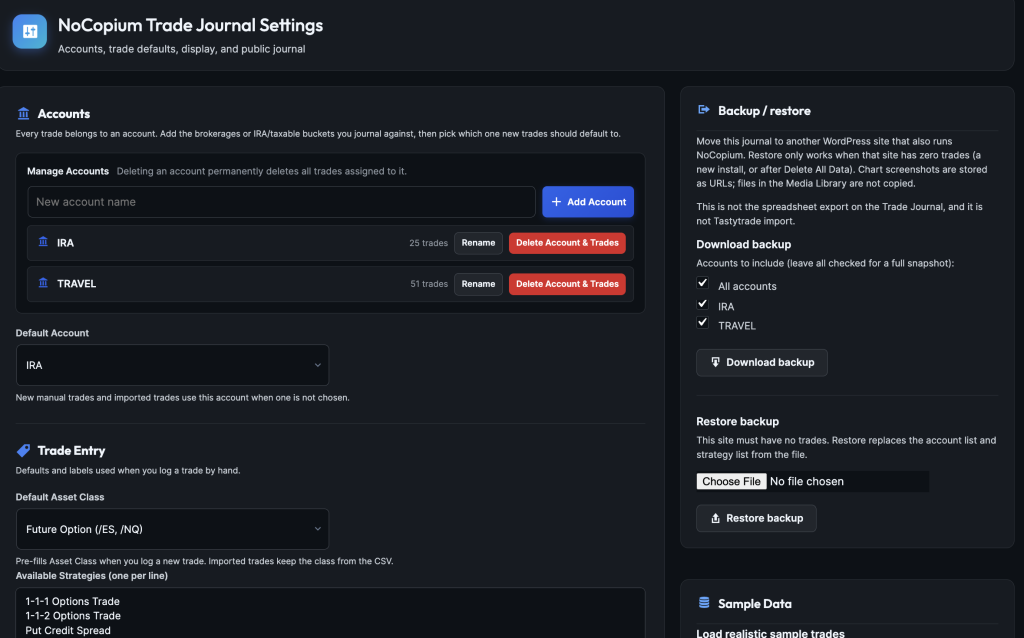
This page covers Settings — accounts, strategy names, how money looks on screen, the public journal, and backup / restore.
Open NoCopium Trade Journal → Settings. Free and Pro share this page.
What it does
You configure the journal here. You do not log trades or import broker files on this page.
Why it matters
Accounts, strategy names, and currency affect every trade you enter. Backup is how you move the journal to another WordPress site.
Important
There is no license key box here — Pro is sold at nocopium.com. See Buying Pro.
Click Save Settings after you change currency, strategies, default account, public journal, or uninstall options.
Adding, renaming, or deleting an account saves right away.
Accounts
Every trade belongs to an account (a brokerage book, IRA, or taxable).
- Type a name → Add Account.
- Rename updates the name on existing trades too.
- Delete Account & Trades removes that account and every trade in it. No undo — export first if you are unsure.
Default Account is pre-selected on new trades. You can still pick another account when you log or import.
Trade entry
Default asset class pre-fills Open New Trade (example: Future Option). Imports keep the class from the file.
Available strategies (one per line) — the strategy names available when you log a trade (iron condor, cash-secured put, and so on).
Put structures here; put labels like “breakout” in notes.
- Remove a line and save — it leaves the dropdown. Old trades keep the name they already have.
- Clear the box completely and save to restore the built-in list.
Custom exit reasons — your own close reasons (example: Took profit early), next to the built-in list.
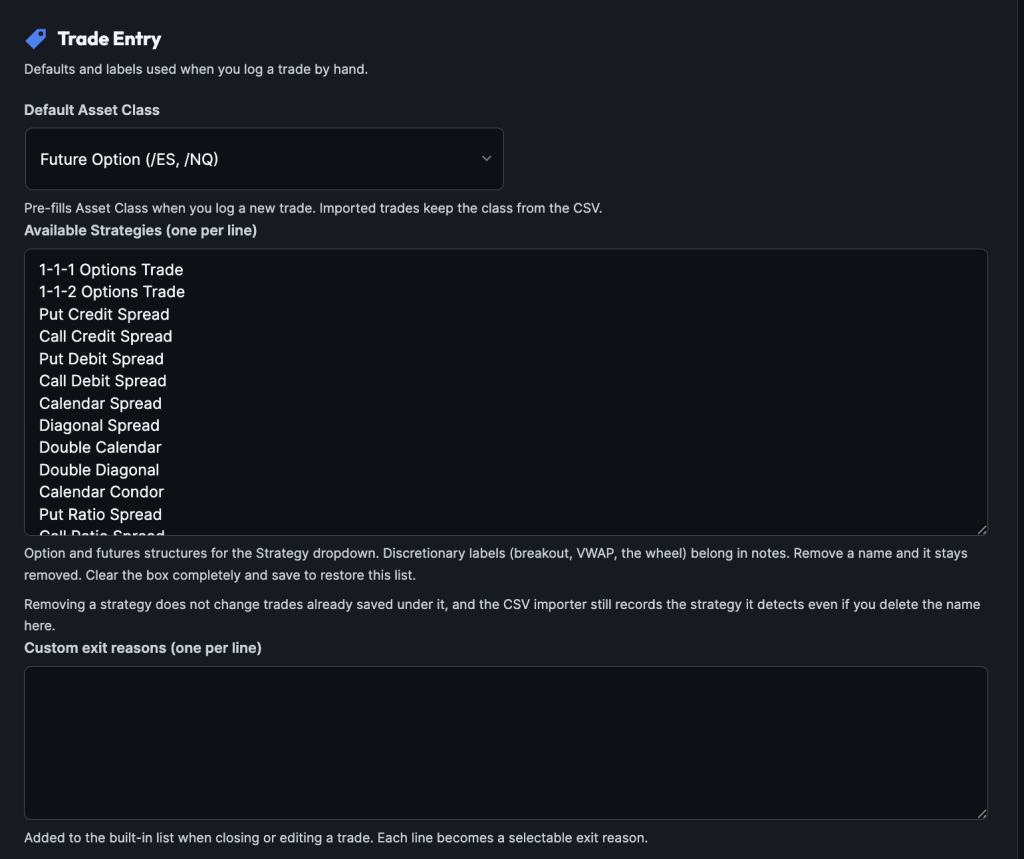
IMAGE: settings-strategies — Strategies and custom exit reasons
Display
How dollars look on the Dashboard, journal, and public page. This does not convert old P&L into a new currency.
Pick a Currency, optionally override the Symbol, and choose left ($100) or right (100$).
Public journal appearance — Auto, Light, or Dark for visitors (new sites default to Dark). Visitors can switch; the browser remembers.
Admin appearance — Light or Dark for NoCopium screens in WordPress. The rest of WordPress is unchanged.
Dates follow your WordPress timezone (Settings → General in WordPress).
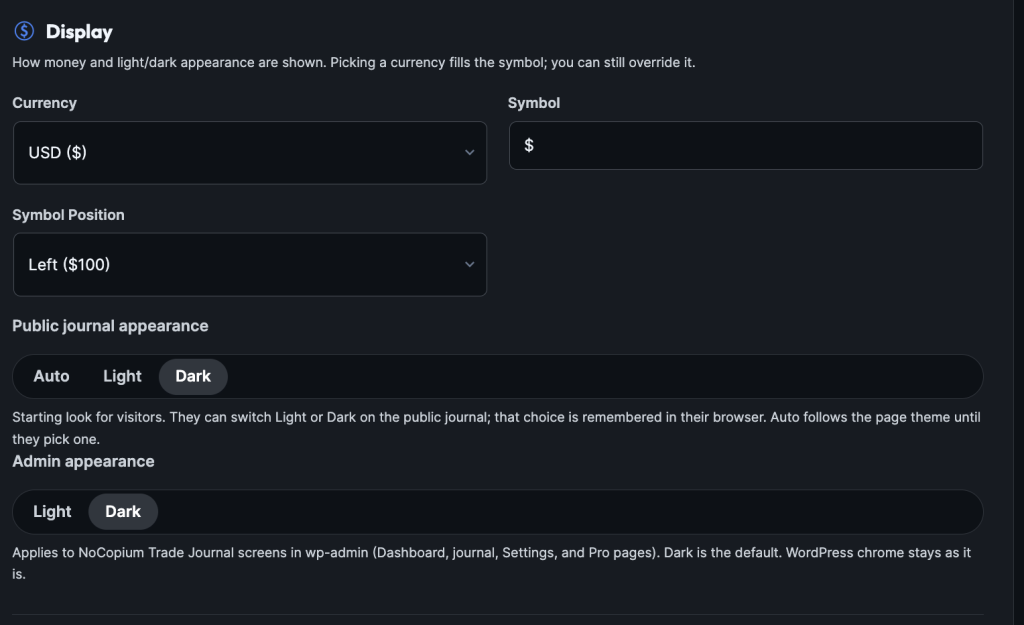
IMAGE: settings-display — Currency, symbol, position, and appearance
Public journal
On by default. Uncheck Enable public trade journal if you do not want it on your site.
| Setting | Meaning | ||||||||||||||
|---|---|---|---|---|---|---|---|---|---|---|---|---|---|---|---|
| Enable public trade journal | Allows on a page | ||||||||||||||
| Require visitors to be logged in | Guests see a login prompt instead of trades |
Paste the shortcode onto any page.
Only publish if you are comfortable showing your trades and P&L.
Linked rolls collapse like the admin journal (one row for the open + its rolls).
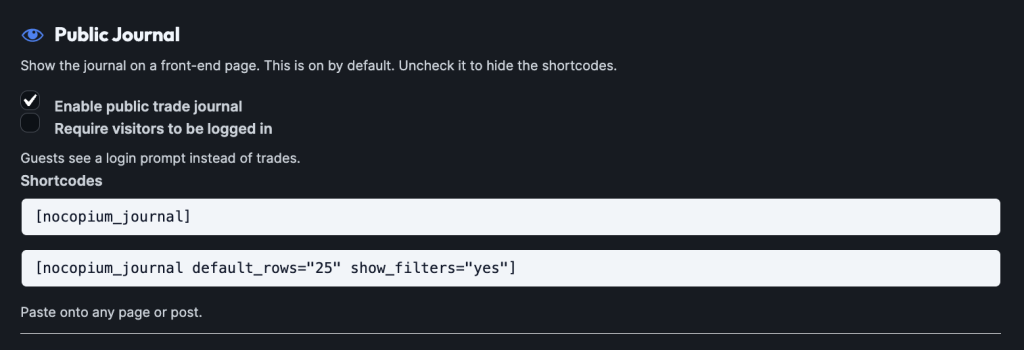
IMAGE: settings-public — Public journal checkboxes and shortcode
Backup / restore
Move the journal to another WordPress site that also has NoCopium Trade Journal.
This is a full snapshot — not the spreadsheet export, and not Tastytrade import.
Download backup
Check the accounts to include → Download backup.
Important
Restore replaces accounts and strategies on the target site and loads the backup trades.
The journal must have zero trades first.
Make a backup of the target site if there is anything you want to keep.
Restore
Activate NoCopium Trade Journal first; do not log trades or load samples.
If the site already has trades, use Delete All Data, then restore.
Screenshots are not copied (only the link). Re-upload media on the new site if needed.
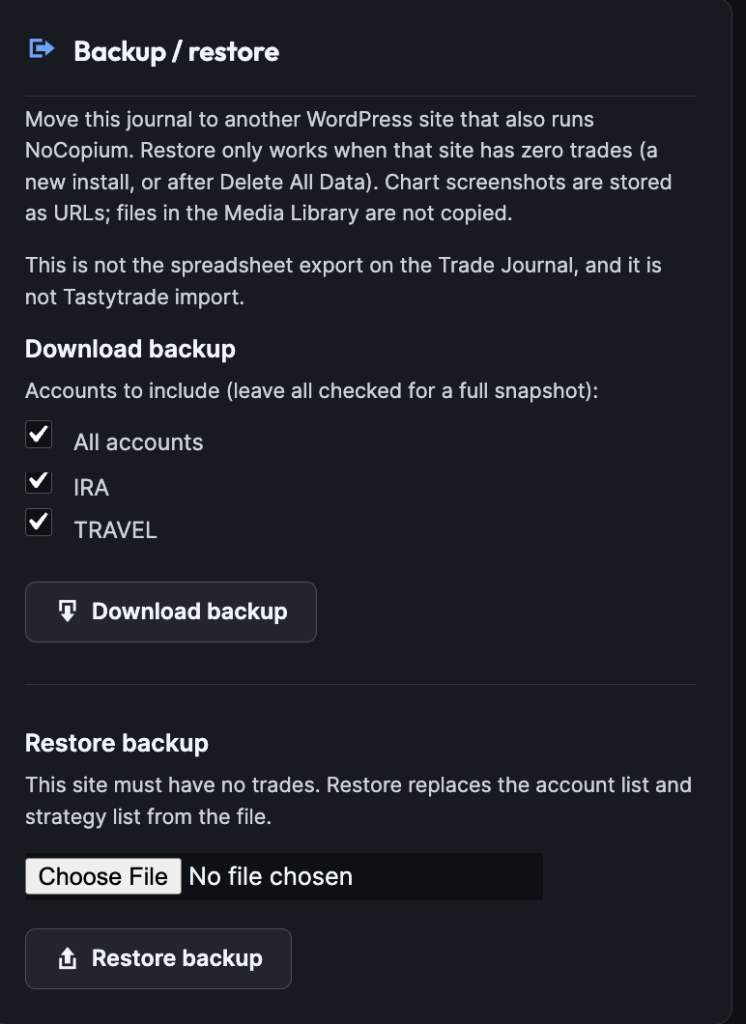
IMAGE: settings-backup — Account checkboxes, download, restore
Sample data and danger zone
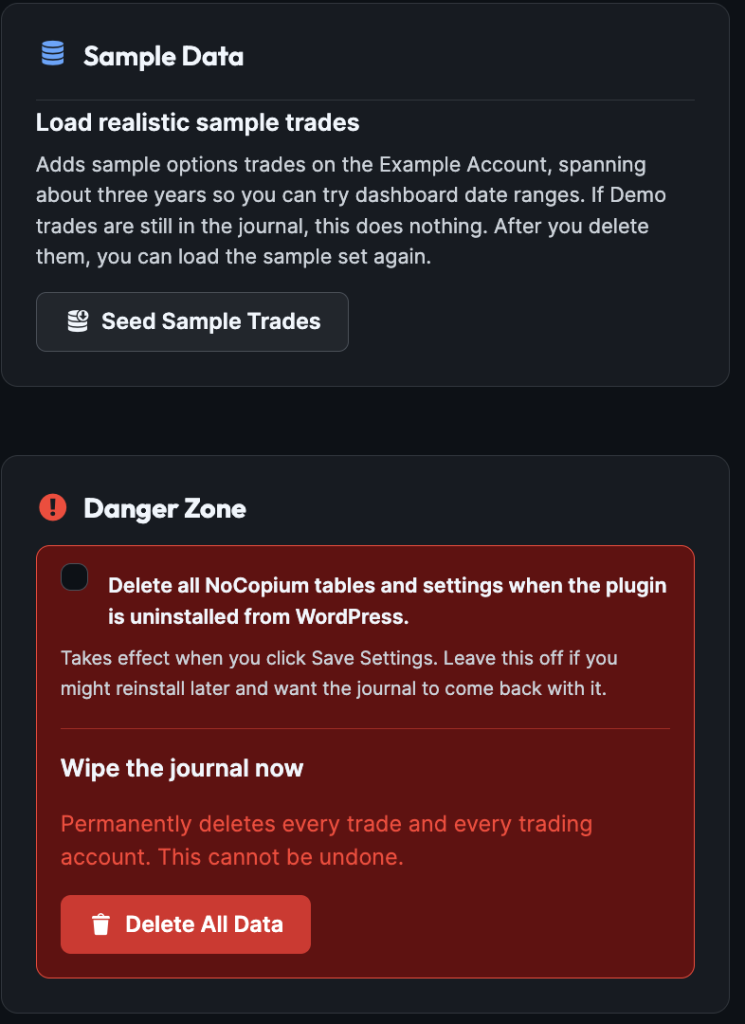
Seed Sample Trades loads demo options on Example Account so you can click around.
Remove that account later, or use Delete All Data for a clean slate.
| Control | What it does |
|---|---|
| Delete all NoCopium tables when uninstalled | Only if you Save with this checked, then uninstall. Leave it off if you might reinstall and want the journal back. |
| Delete All Data | Wipes every trade and account now. Cannot be undone. |
Turning the plugin off without that uninstall checkbox does not erase the journal.
What this page is not
- Not Import (Pro)
- Not Freemius checkout
- Not a live broker connection
- Not starting account balance or portfolio return stats
Free vs Pro
| NoCopium Trade Journal | NoCopium Trade Journal Pro | |
|---|---|---|
| This page | Yes | Same |
| CSV / sync import | Link to nocopium.com | Import Trades menu |